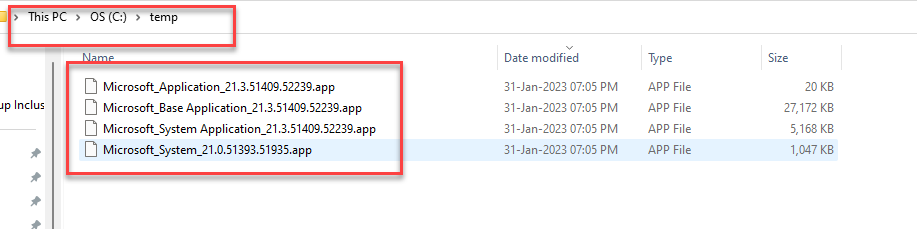
Yes, we can do that, Lets start how to do that, so we can minimize the size of our app folder not to download the symbols in single project file.
How we can do that?
- Create new project as usual
- Generate manifest
- Download symbols
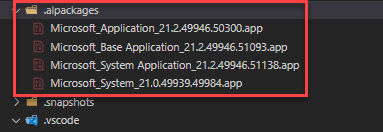
- Now in this step you will all your symbols are download in your .alpackage folder see below:
- This one the usual steps we follows
- This step also make your project file heavier means uses more spaces.
- Now in this step you will all your symbols are download in your .alpackage folder see below:
- Its time to change this .alpackage folder to your local path
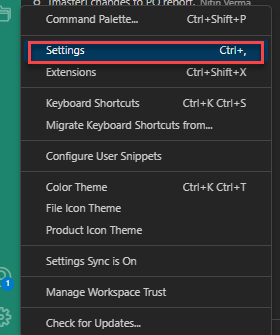
- Go to Settings and search Package Cache path
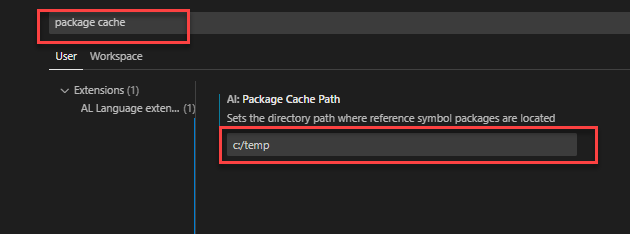
- Now change this patch to your local folder, in my case its C:/Temp
- Come out
- Now you can delete the .alpackage folder from your project file.
- Download symbols again
- you will see all symbols has been downloaded in your local given folder path
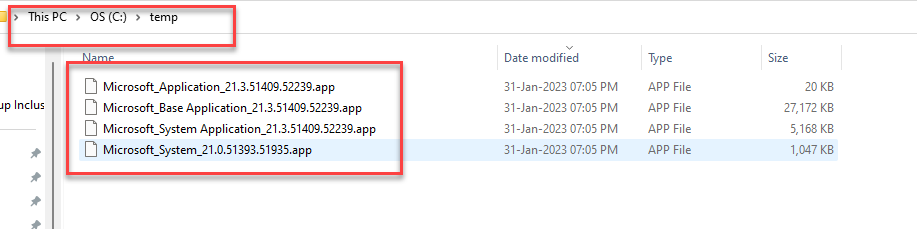
- Compile your project as usual and good to go
[embedyt] https://www.youtube.com/watch?v=RiZ2nrO3rhA[/embedyt]
Hope you find this post useful. Write me if any feedback. All the best.